Chapter 2 Choosing or Creating a Client
1) Choosing a Client
- by search: Click on the magnifying glass  and select the client from the search results. and select the client from the search results.
- by direct registration: Enter the client code 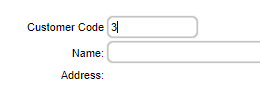 directly and click ENTER. directly and click ENTER. 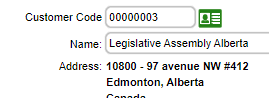
If the customer codes are numeric and the system manages them, you can enter the code digit, and the system will complete the rest.
If the view open orders option is enabled in the ADMINISTRATIVE SETTINGS, OPERATIONAL BEHAVIOR section,
When creating a new invoice, after selecting the customer, the open orders and quotes for that customer will appear.
The hyperlink for the document number (in red) allows you to view it, and the  button imports the document directly into the invoice. button imports the document directly into the invoice.

2) Creating a New Customer
Depending on the meter configuration, the customer number may be managed automatically. In this case, simply click the button, and the next available customer number will appear, along with the fields for entering information.
If the customer number is not managed automatically, simply enter the new customer code of your choice.
Complete the customer information and click the save button to create the customer account immediately.
Complete this step before clicking anywhere else on the page!
The account is created regardless of whether the invoice is completed or not!
3) Detailed Customer Information Without Creating a Customer Account (Cash Sale) or Updating Customer Information:
Normally, for a cash sale, no information is entered. However, if you wish to specify the name for a cash customer,
simply enter the customer's name in the box below the code (the code remains empty and will be set to CASH upon saving).
If you wish to specify additional contact information such as address or phone number, click the  button and, if the number sequence is automatically generated, enter the information, then clear the Customer Code box and press the "Enter" key. .
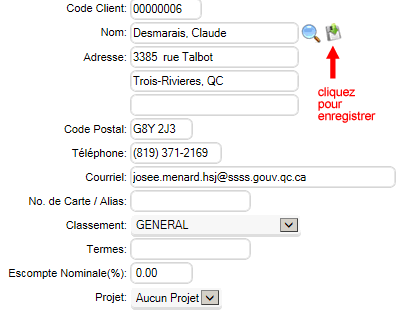
It is also possible to correct the information in an existing customer account. After selecting the customer, click the button. The window below will appear, and you can make your corrections. To save the changes, click the button and, if the number sequence is automatically generated, enter the information, then clear the Customer Code box and press the "Enter" key. .
It is also possible to correct the information in an existing customer account. After selecting the customer, click the button. The window below will appear, and you can make your corrections. To save the changes, click the  button. button.
|
|