The inventory check is a multi-task tool which, depending on the access mode, allows you to view the inventory and take certain actions.
This mode is configured according to your profile by the administrator.
In mode 0: Allows you to view products according to specific criteria.
In mode 1: Optionally allows from the table, to access; the product sheet.
In mode 2 (ADMIN): If allowed, allows you to adjust certain information in the product sheet and allows you to adjust the inventory quantity.
In all cases, you can choose the items according to their category, or a keyword in the code or description and an option to filter the quantity. eliminates items without quantity.
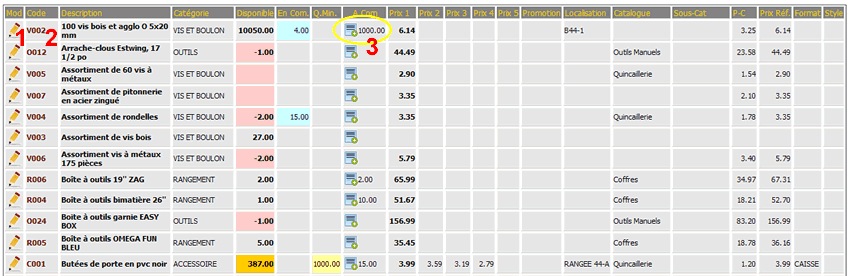
In standard mode the function presents the columns normally consulted for the inventory, i.e. quantities, sales prices and cost (if allowed in the profile) and certain additional information.
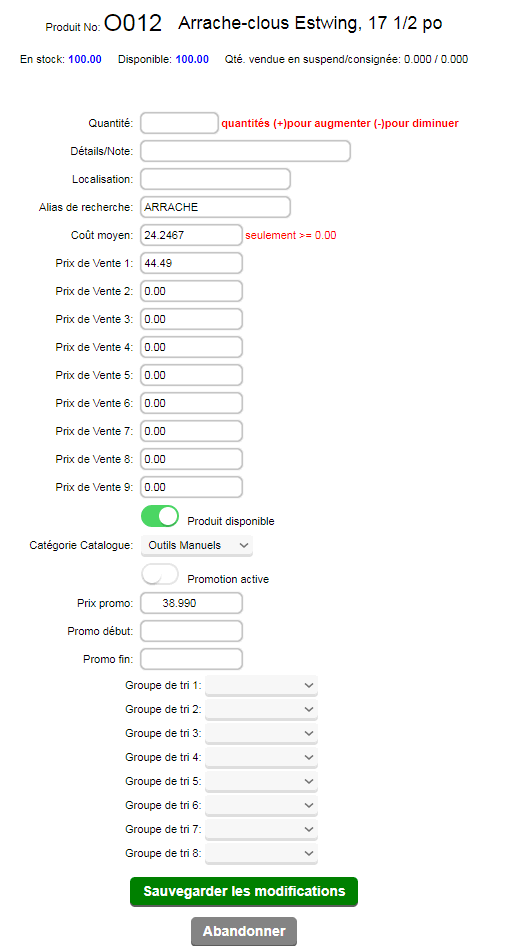
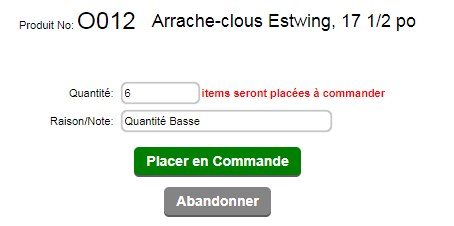
In substitute mode, the function emphasizes the purchasing aspect and orders from suppliers for items.
In catalog mode, information relating to the online catalog is displayed as well as the photo if available.
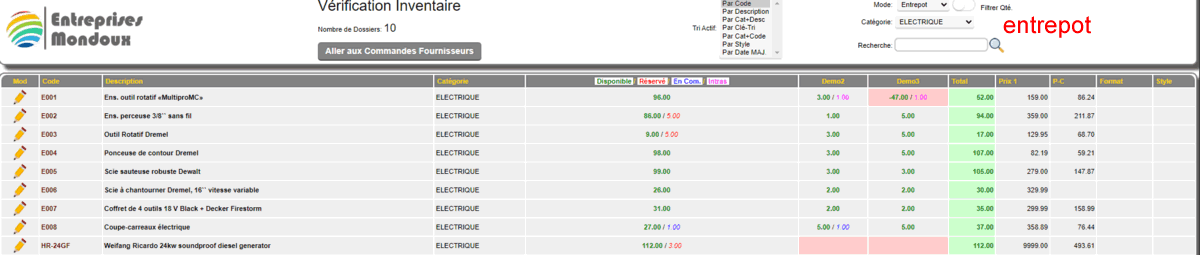
In warehouse mode, the function consults and allows you to view the quantities of warehouses configured in the administrative parameters.
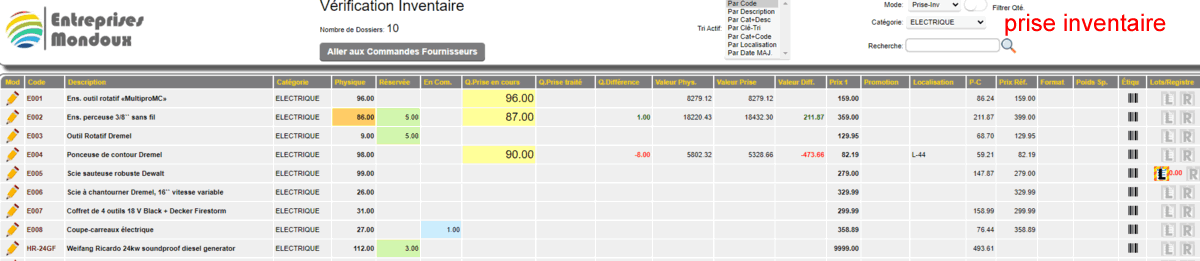
In inventory mode, the quantities taken are displayed. This allows you to see if any items were forgotten during inventory taking.

In cost error mode, the function makes it possible to detect the conformity of costs VS the sold price.

In quantity error mode, the function allows you to view items in negative quantities (more sold than received or purchased).
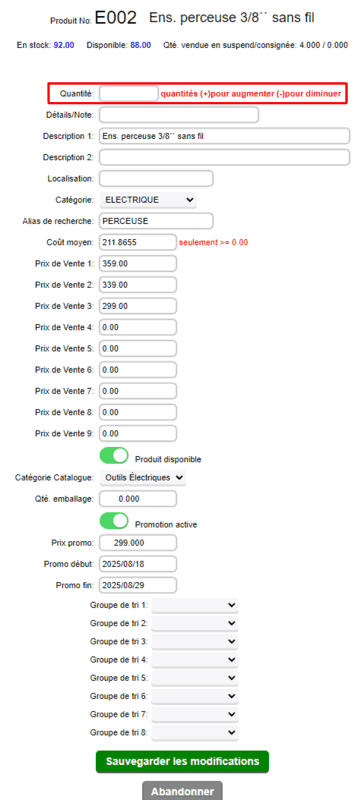
If in ADMIN mode (mode 2), by clicking the button  the modification page for the chosen product appears. the modification page for the chosen product appears.
In this page it is possible to adjust the quantity, the reason for the quantity adjustment
which will be displayed in the inventory movement log.
It is possible to modify the cost, sales prices,
product availability, active promotion or not,
the promo price, the start date and the end date of the promotion.
Save Changes saves the changes.
By clicking the link (PRODUCT CODE), you access the product sheet.
BY clicking the small barcode on the right, you can print a product label.
|
|
|
 |
|