WEBMINO Manual
Support: (403) 909-6517 or (514) 617-7817
System What's New ADMINO+/WEBMINO Portal ADMINO+ account menu Company menu Search
Tips and Work Techniques
Accounting Startup Initial Configuration Online Customer Services Rental System Billing and closing Add inventory Record stock losses Follow up with your customers/representatives Prepare and ship SERVICE+ options Mini assembly production Manufacturing production Production Batches Import-Export Chains
Administrative Options
Account Subscription Appearance Profiles Users Companies Import-Export
System Settings
General Information Main Menu Appearance Profiles Users Printers Import-Export Special Tools Subscription
Configurations

Administrative Settings
General Section
Company Settings Financial Settings Operational Behavior Counter Management Special Sale Options Point of Sale Financial Statements Warehouses Salespeople Projects Documents
Terminal Printing Emails and Text Messages Bulletin Board Exchange Rates
Categories Section
Inventory Cat. Customer Cat. Supplier Cat. Employee Cat. Routes Sorting Groups Sales Tracking Service Types Service Tracking Documents Service Forms
Salary Section
Templates Constants Federal tax Provincial tax Federal surtax Provincial Surtax Direct Deposit XML Statements
Special Tools
File Maintenance Specific Changes Payroll Tools Custom Forms
Special Modules
Specific Items in Batch Production Settings Syncro Inventory Syncro Customers
Transport Management
Route Management Truck Management Truck Schedule Planning Delivery Console
Customer Service Settings
General Settings Appearance Payments Shipping Home Page Promotions Page Service Page Terms Page Emails Activation
General Ledger Menu
Entries Charter of Accounts Reconciliation Transit Deposits Sales Taxes Payroll Remittances G/L Analysis and Verification G/L archives Budget Liquidity Analysis Daily Activities Quick Project Analysis
Periodic Closures
Fiscal Year Calendar Year Inventory Variation
Financial Statements
Trial Balance General Journal General Ledger Cash Receipts Cash Disbursements Income Statement Balance Sheet Project Analysis Results Analysis
Income Menu
Billing
Customer Accounts Cash Receipts Point of Sale Compact Point of Sale Closing Sales Cash Drawer Countertop Invoicing Customer Receipts Account Statements AR Analysis Invoice Printing Accounts Receivable Adjustments Invoice Tracking Open Invoice Tracking Selective Billing Order Tracking Quote Tracking Shipping Console Export Chains Consignments Consignment Tracking Billing Contracts Contract Billing Contract Tracking Pmt Request Tracking. Rental Console Quick Sales Search Mobile Invoicing Mobile Customers
Reports
Accounts Receivable Sales Orders Mail Merge Quotations Statistics Comparative Statistics Compound Statistics Global Sales Global Mail Merge
Expenses Menu
Purchases and Expenses Suppliers Payments Closing Purchases Employees Checks A.P. Analysis Payable Adjustments C.A.R.-C.A.P. Exchange Chain Tracking Import Chains Time Clock Control Attendance Time Clock Supervision
Payroll Processing
Payroll Preprocessing Payroll Processing Direct Deposit Payroll Cancellation Time Clock Transfer
Reports
Accounts Payable Purchases Payroll Records of Employment T4-R1 Forms Commissions Checks
Inventory Menu
Inventory Orders Inventory Verification Products to Order Inventory Changes Inventory Taking Inventory Processing Promotional Changes Product Creator Order Tracking Required Products Intra Branches Intra Reception Assembly Sold Products Analysis Inventory Movement Analysis Lot Analysis IN-OUT Inventory Quick Inventory Search
Reports
Inventory Purchase Orders Inventory Replacement Missing Quantities Assembly Composition
C.R.M./Service
Time Clock Events Today's Events Events to Watch Calendar Event Tracking Service Requests Work Orders Service Schedule Work Order Tracking Daily Route Sheet Customer Visit Tracking Customer Routes Document Bank Forms Management Complete the Forms Table of Forms
Reports
Service
Clinic/Appointments
Dashboard Appointments Monthly Schedule Weekly Schedule Daily Schedule Treatment Follow-up 6 Month Calendar Operation Setup Treatments Rooms
Production
Production Monitoring Production Items Specifications Put into Production Method Management Production Calendar Production Day Production Console Production Cost Variation Required Components Tracking Component Cost Variation Component Usage
Reports
Production Recipes


Sales Invoicing

Back to main page


Chapter 8    Using the calculator and other tools
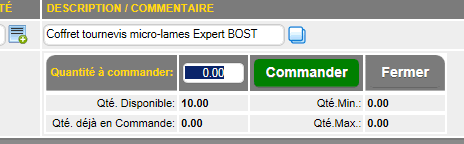
Products to Order
The button displays the section for adding products to order. These products can be processed in the Products to Order section.
Profit/Area Calculator
The button displays the profit calculator to help the seller calculate prices or select available prices (circled in red).
In the regular billing calculator on the right, you will find related products from the ACCESSORIES section of the CATALOG tab on the product sheet. You can add these items to the invoice using the button (indicated by the red arrow)

If the item's details include a sales format, the area calculator will appear. You can use it to determine the area to be covered using the product's sales format.


Notepad
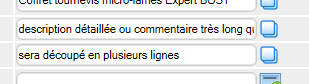
The button opens the notepad for entering very long comments, which should be broken down into multiple lines.
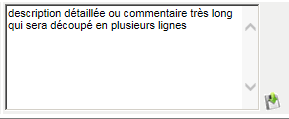
Clicking the button will split the line into the required number of lines.

Discounts and Tax Reduction
The button allows you to convert a displayed discount percentage into a fixed amount.

The button on each line allows you to deduct the tax from the amount entered in the Unit Price field.

Other Tools
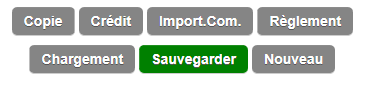
The row of buttons in the center allows you to perform certain specific operations. The Copy and Credit buttons allow you to select an existing invoice and copy it into a new invoice (the credit button reverses the quantities to create a credit).
The Import button allows you to select a customer order or a quote to invoice its contents.
The Load button allows you to import an existing invoice to modify it or simply print it, depending on its status.
Depending on your profile settings, you can edit an existing open invoice. It is not possible to select a posted (closed) invoice. To edit an open invoice, click the Upload button. A specific invoice search will appear.
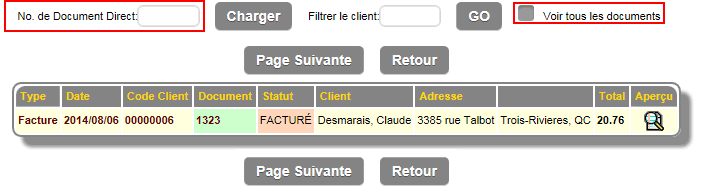
If you have the invoice number, you can enter it in the direct document section and click the Upload button. By default, the search only displays open invoices. If you want to see closed invoices, click the View all documents option. (in yellow)
In the search grid, the button allows you to view the invoice summary.
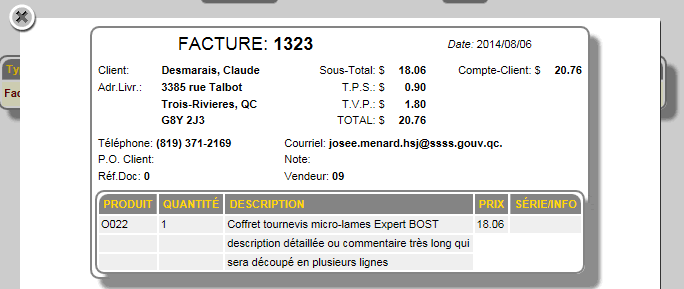
When the invoice is selected, it will load and, depending on its status, will display a note under the customer section.