Chapter 3 Adding Products or Services
To enter your sales items, you can enter the code and press "Enter", use a barcode scanner, or click the  button to activate the search. You can also add a comment; simply type the comment in the description box without entering a product code and confirm with "Enter". button to activate the search. You can also add a comment; simply type the comment in the description box without entering a product code and confirm with "Enter".
To add a comment, you can simply write the comment in the description without entering a product code. You can encode comments in the product listings with a code if you wish to have a database of comments.
The  button to the left of the product code allows you to insert a line. button to the left of the product code allows you to insert a line.
The  button allows you to delete a line. button allows you to delete a line.
If automatic advance to the next item (point-of-sale mode) is not enabled in the profile,
you can confirm the quantity, description, price, discount, tax levels, and serial number before confirming the line.
If it is enabled, as soon as you enter your product code, the line is completed, and the system waits for the next product. This is similar to a checkout at a grocery store.
In counter billing, if you modify an existing line on the invoice, this mode is temporarily disabled.
If you are using point-of-sale (POS) billing, the item procedures are different.

Point-of-sale billing uses a work line (highlighted in yellow) where data is entered. Once completed, the line is added to the billed items unless automatic advance to the next item (POS mode) is enabled in the profile.
Upon confirmation of the line (POS mode or not), the completed line appears in the detail lines. To modify an item in the detail lines, click on the product code, and that item will appear in the work line. After confirmation, it returns to the detail lines.
If automatic advance to the next item (point of sale mode) is not enabled, and you have activated the Direct Stock Info option in your profile, when you enter a product code, an information section for the current item will appear.
This section contains related products from the ACCESSORIES section of the CATALOG tab in the product details. These items can be added to the invoice using the button (indicated by the red arrow).

If the invoiced item is a set (a kit), the item and its components will be BLUE to distinguish them from regular items.
For a set, if the component is not printed on the invoice, a small icon will indicate this option.

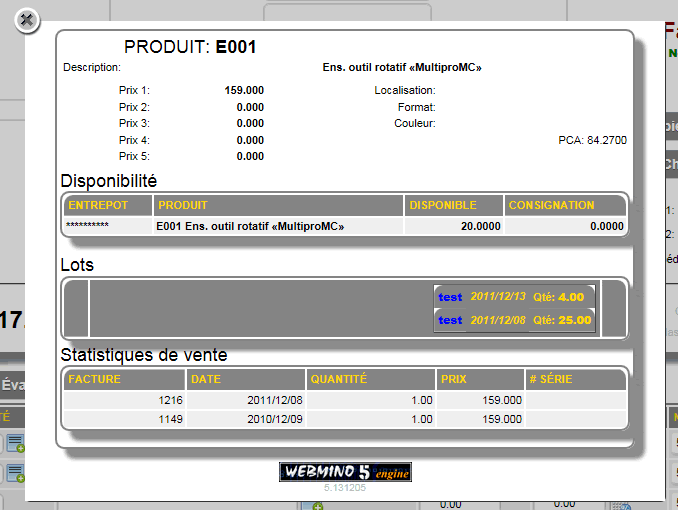
In regular invoicing, the  button displays the product information window: button displays the product information window:
If you are using assemblies, the number of possible assemblies based on the components will appear next to the small icon. If activated, this icon allows you to assemble the product immediately. See the assembly section for details.

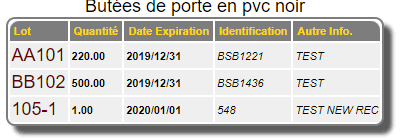
If inventory batches are enabled for an item and it is mandatory, you will need to select a batch to save the invoice.

If a batch must be selected (required or optional), click on the batch icon to access the batch selection.
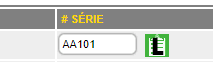
Once the batch is selected, you will see the icon in green with the batch name displayed.
|
|